

Community Mode
What it does
Section titled “What it does”By default, every Discord server runs in Non-Community mode. The server itself doesn’t really change, and you can always turn Community mode off again — though enabling it is a bit more work.
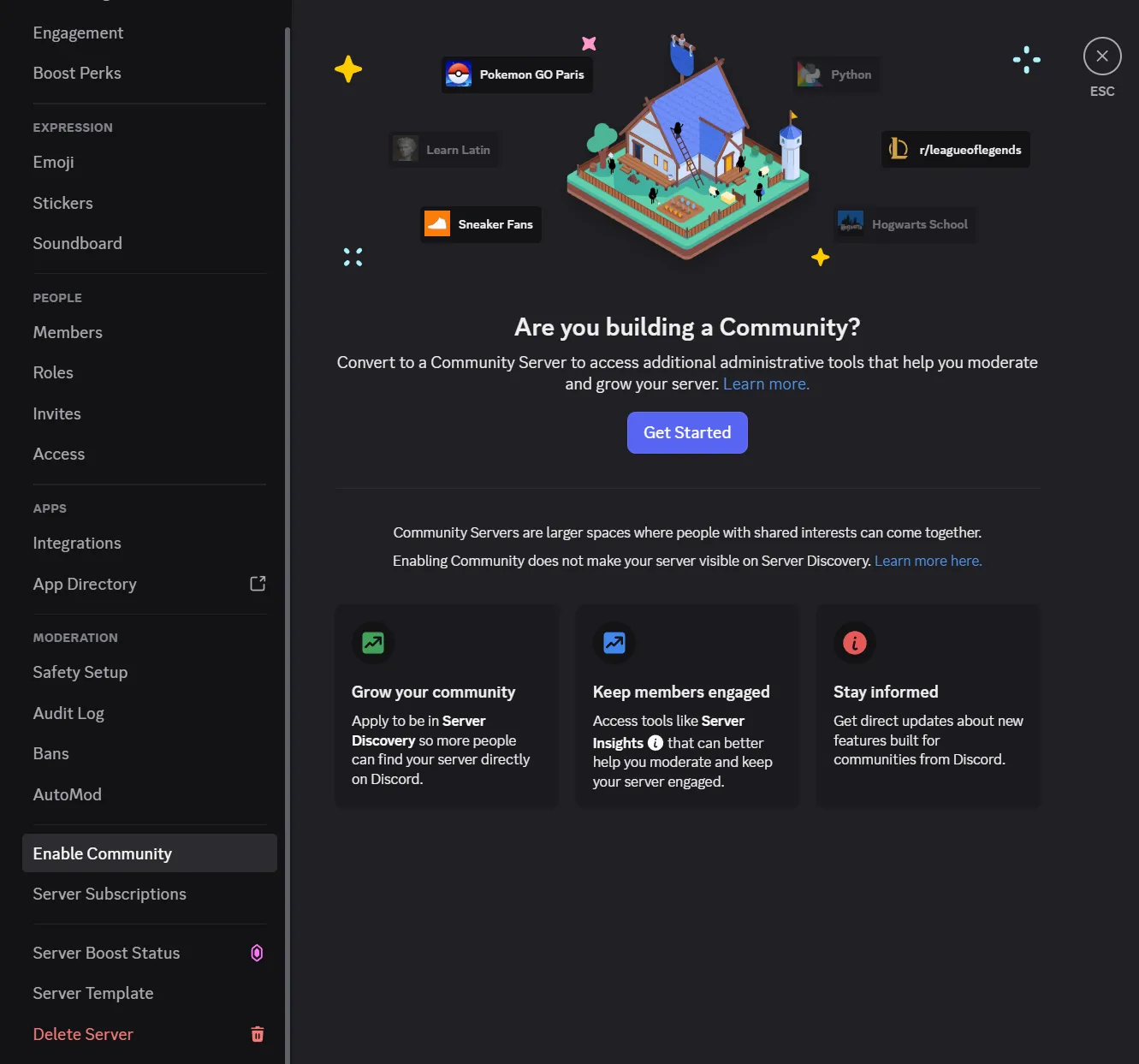
Enabling Community mode tells Discord’s system that your server is meant to be a “public community” rather than just a private space for you and your close friends.
This doesn’t do all that much on its own, but it enables some additional Discord-native safety and auto-mod features that aren’t available to non-Community servers. In return, you’re required to keep a few minimum safety and moderation settings that can’t be turned off while Community mode is enabled.
Community server requirements
Section titled “Community server requirements”While Community mode is enabled, Discord enforces a baseline of safety settings:
- Verification Level must be set to at least Low (email verification).
- Sensitive Content Filter must be set to High (scan everyone’s media content).
- You must have a Rules channel (public).
- You must have a Community Updates channel (should be staff-only).
- Members in Channel List is enabled for you and cannot be turned off.
- Default Notification Settings must be set to “Only @mentions”.
- The @everyone role cannot have any moderator-related permissions.
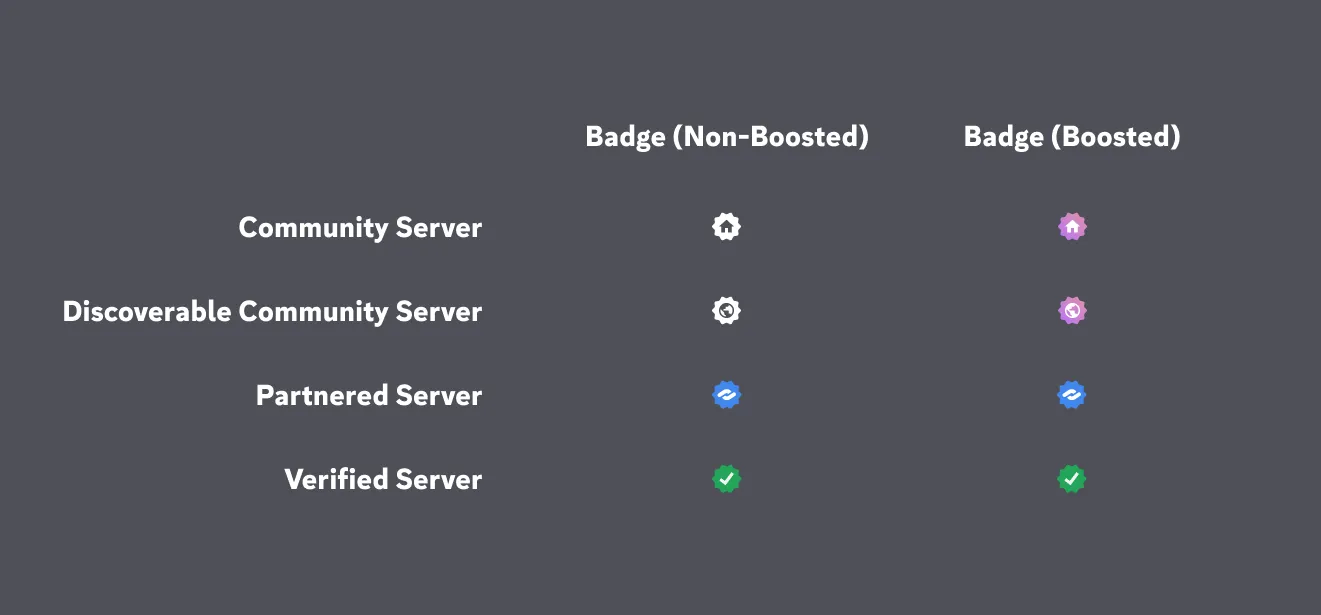
Does enabling Community mode make my server public or discoverable?
No. Community mode is a prerequisite for Discord’s server discovery, but it doesn’t enable it on its own — your server stays hidden and invite-only until you separately turn on (and qualify for) discoverability.
Can I turn Community mode off later?
Yes. You can disable it at any time from Server Settings → Community Overview → Disable Community. The server itself doesn’t really change when you turn it on or off.
Do I need to set up the requirements beforehand?
No — Discord’s guided setup walks you through enabling and configuring each requirement when you go to turn Community mode on.