

Slash Commands
A slash command is a command you run by typing / in a Discord message chat input. They are a Discord
feature, not an Archivian one — Archivian tells Discord what capabilities it has, and Discord shows
them to you.
They look like a message you are about to send, but they are not. Nothing is posted to the channel unless the command itself posts something.
Running one
Section titled “Running one”-
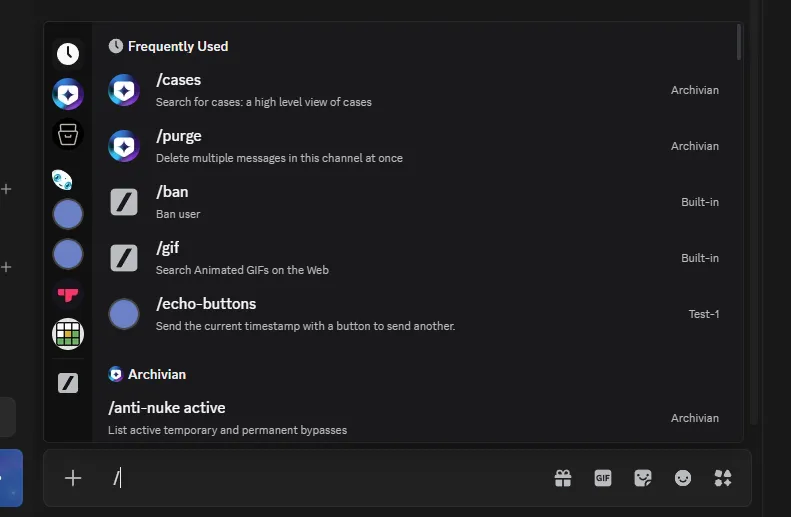
Click into the message box of any channel and type
/.A list appears above the box showing every command available to you in that channel.
-
Keep typing to narrow the list, then click the command you want (or use the arrow keys and press Tab or Enter).
-
Fill in the command’s options. Discord moves you from one to the next as you complete them.
-
Press Enter to run it.
Options
Section titled “Options”Most commands take options—input values you give the bot to work with.
Discord knows what kind of value each option wants, so it helps you pick one. An option that wants a member gives you a searchable list of members; one that wants a channel lists channels. You are not typing an ID or a name and hoping it matches.
Options come in two kinds:
- Required: the command will not run until you fill these in.
- Optional: you can skip them, usually resulting in a default value being used. Sometimes it tells you in the description.
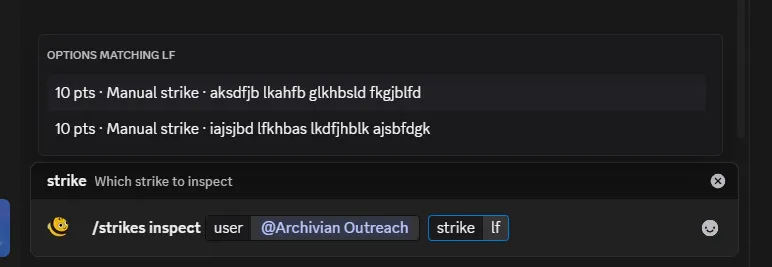
Some options autocomplete: as you type, suggestions appear that came from Archivian rather than from Discord. Picking a suggestion is not the same as typing the same words yourself — the suggestion carries a hidden value behind it, so use the list rather than typing it out.
There are exceptions. Some commands let you use a custom value you type out, ignoring the suggestions, but most don’t.
Subcommands
Section titled “Subcommands”Some commands are grouped under one name. /strikes browse, /strikes inspect and
/strikes pardon are all the same /strikes command with a different action after it.
Type the parent name and the picker will show you the actions available under it. Grouping keeps related actions together instead of filling your command list with a dozen similar entries.
Who sees the reply
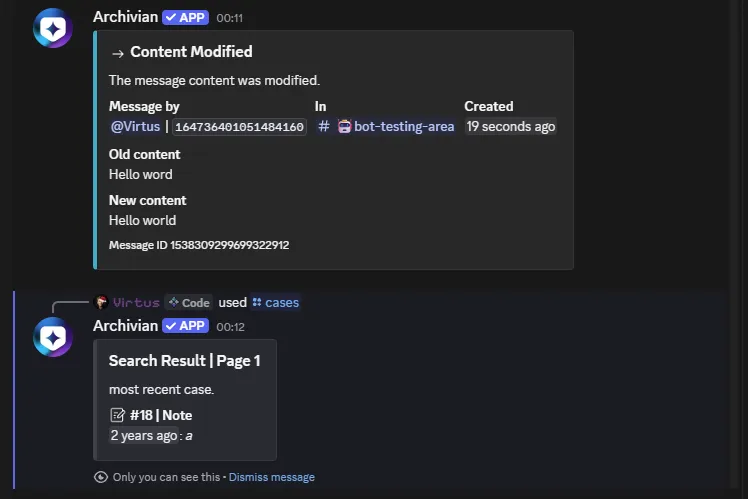
Section titled “Who sees the reply”Most of Archivian’s replies are ephemeral. That means only you can see them, and they disappear when you dismiss them or restart Discord. Discord marks these with “Only you can see this” and with a visually distinct blue bakground.
This is deliberate for moderation commands: looking up a member’s history should not post that history into the channel.
When the command isn’t there
Section titled “When the command isn’t there”If you type / and the command you expect is missing, it is almost always one of these:
- You do not have permission to use it. Discord hides commands you cannot run rather than
letting you run them and fail.
- Your server’s admins control this in Server Settings → Integrations → Archivian, per command, per role and per channel.
- You are in the wrong channel. The same settings can allow a command in some channels and not others.
- Archivian is not in the server, or has just been added. Newly registered commands can take a few minutes to appear everywhere.
- You are looking at the wrong app. Several bots can have a command with the same name. The picker shows each command’s app icon on the right — check it is Archivian’s.
- Your Discord app hasn’t loaded them. Rare for normal users, but Discord loads the list of available
commands only once when you open the server.
- Try reloading Discord, or shutting it down and re-opening it.
If a command appears but tells you that you are not allowed to use it, that is a different thing: Discord let you run it, and Archivian refused. That is Archivian’s own permission system, which your server’s staff configure in the dashboard rather than in Discord.