

Members in Channel List
What it does
Section titled “What it does”Enabling this adds a quick-access button at the top of the channel list. The view it leads to is for moderators, and is normally a few more clicks away: Server Dropdown → Server Settings → Members.
That’s pretty much it for this setting — it just makes the view more easily accessible.
The Member List view itself
Section titled “The Member List view itself”Not to be confused with the normal member list on the right side of your Discord client, this view is meant for moderators and shows recently joined server members in an organized table.
The table features columns with additional information you’d want to see, plus checkboxes so you can easily perform bulk banning or member pruning.
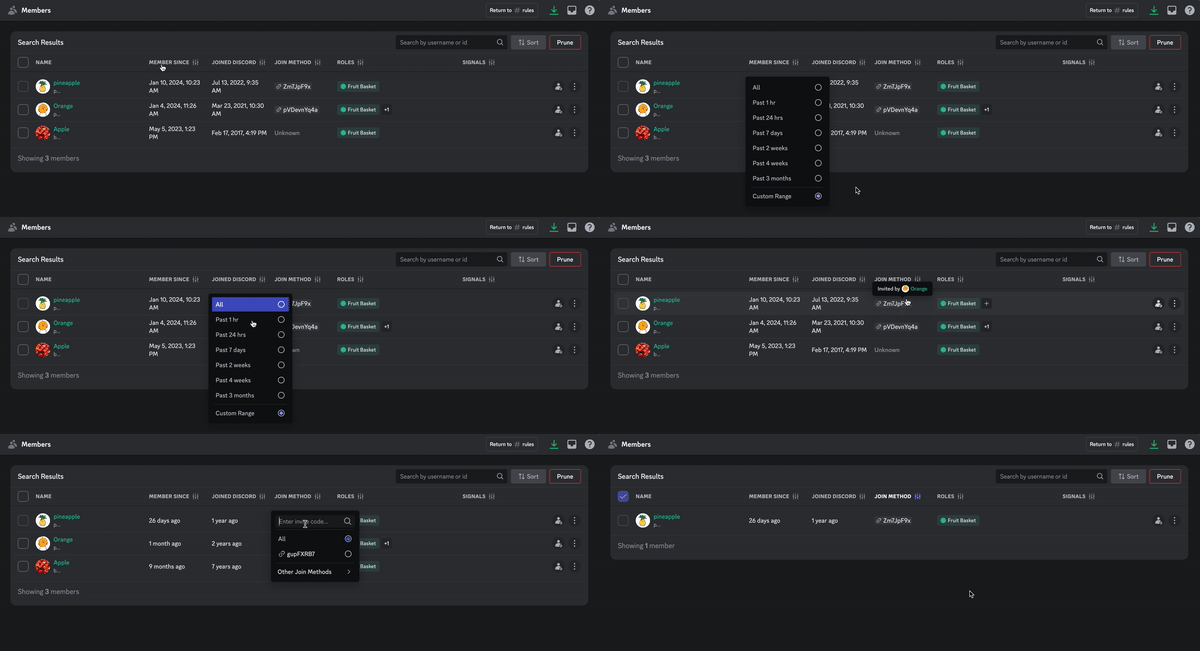
In this view you can sort and filter based on:
- when they created their account
- when they joined the server
- join method (e.g. which invite code was used, and see who created it)
- the roles they currently have (and manage them)
- quick-access to open the user in Mod-view
- other user options (timeout, kick, manage roles, change nickname, etc.)
- signals, such as:
- whether the user is currently timed out
- whether the user has had unusual DM activity (usually mass-DMs)
- whether the user has had unusual account activity
- whether the user is quarantined (Discord imposes arbitrary limitations on the account)
Required Permissions
Section titled “Required Permissions”You must either be the owner of the server, or have one of these permissions, to see the moderator member list:
- Administrator
- Manage Server
- Manage Roles
- Manage Nicknames
- Ban Members
- Timeout Members
- Kick Members
You can read more in Discord’s own help article:
Discord Help CenterMembers PageDiscord's help article on the moderator member list and what it shows.