

Moderator 2FA
What it does
Section titled “What it does”Anyone with Discord permissions to perform moderation actions — for example, timing members out — needs 2FA enabled on their Discord account. Without it, the Discord UI won’t let them use the action, and their moderation attempts are ignored by Discord. Keep in mind that bots can be used to bypass this; see the section further down.
As you can see in the table below, Moderator 2FA is disabled by default, so you have full access. Once enabled, it hides some options until you have 2FA set up for your Discord account.
| Combination #1 | Combination #2 | Combination #3 | |
|---|---|---|---|
| Moderator 2FA enabled? | ❌ | ✅ | ✅ |
| User is admin? | ✅ | ✅ | ✅ |
| Account 2FA set up? | ❌ | ❌ | ✅ |
The “Example UI” — the right-click member menu — looks like this for each combination:
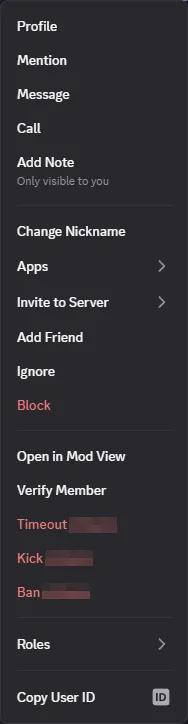
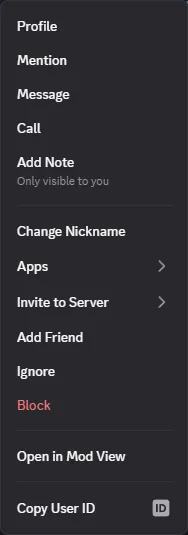
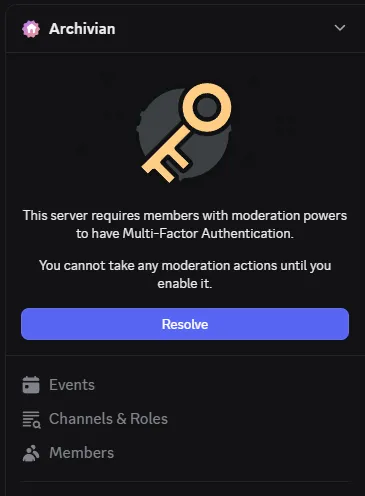
Staff without 2FA enabled also see a prominent notice at the top of their channel list.
Bypass via bots
Section titled “Bypass via bots”If you have bots that can perform moderation actions, staff may be able to bypass the 2FA requirement by using a bot instead of Discord to perform their actions. This can especially be a problem with older bots that use text-based commands instead of the modern native command/interaction system.
If the bot uses modern slash commands, a bypass can still be possible depending on how the
developer set up the command’s permissions. Each command can have a required Discord
permission out of the box. For example, a /config command could require the user to have
Manage Server or Manage Roles in the server.
If the command isn’t configured to require specific Discord permissions out of the box, staff can use the bot to bypass the 2FA requirement. If it does require a moderation-related permission, and you haven’t created any permission overrides, then staff will need to meet the 2FA requirement to use the command.
Commands, overrides, and permissions
Section titled “Commands, overrides, and permissions”To see a bot’s command permissions:
Server Settings → Integrations → click on the bot to inspect it.
You can then click individual commands to inspect them for specific permission requirements or overrides.
The permissions required can be overridden on a per-command basis (root commands only; there are no sub-command-level controls). However, you can currently only define channels, users, and roles as overrides — not individual Discord permissions.
This means that instead of /config requiring Manage Server or Manage Roles, you can change
it so it’s only allowed in specific channels, for specific users, or for users with specific
roles. You cannot, for example, remove the permission-level requirements — say, remove Manage
Roles and replace it with Manage Channels.