

Quarantine / Jail Setup
The basic idea: anyone assigned a quarantined/jailed role loses access to every channel. The only channel they should see is a dedicated, secret channel for quarantined people. You can also let them see the rules channel, or whatever else you decide.
How it works
Section titled “How it works”In Discord you can’t revoke permissions through roles, but you can through channels. Roles can only add permissions, whereas channels can both add and remove (some) permissions. So the approach is to create an override in each channel that explicitly denies the quarantine role access to view that channel.
Revoking view access is the only permission change you need — you don’t need to remove Send Messages, Read History, and so on.
How to set up
Section titled “How to set up”Hide a channel from quarantined members
Section titled “Hide a channel from quarantined members”- Edit the channel you want to hide.
- Go to the Permissions section.
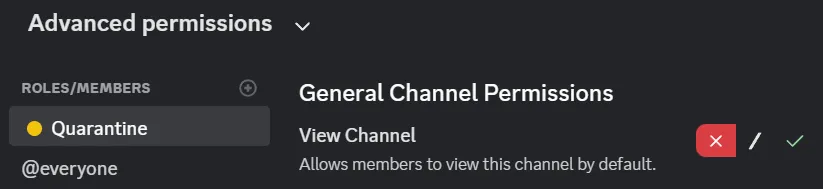
- In the Advanced permissions area, add a new role and select your quarantine role.
- Set its View Channel permission to deny.
Allow a channel only for quarantined members
Section titled “Allow a channel only for quarantined members”- Edit the target channel.
- Go to the Permissions section.
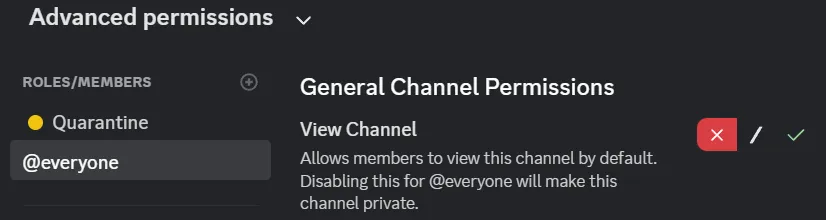
- Click the @everyone role in the list.
- Set its View Channel permission to deny.
- In the Advanced permissions area, add a new role and select your quarantine role.
- Set its View Channel permission to allow.

Making it easier to maintain: category overrides
Section titled “Making it easier to maintain: category overrides”Most of the time your channels live inside a category. Instead of creating an override for each channel, you can create the override on the category. (Channels that aren’t in any category will still need overrides added individually.)
Any permission change you make to a category is copied to all child channels that are in sync with it. By default, a channel is in sync with its parent category as long as you’ve never touched its permission overrides.
Checking sync state and syncing
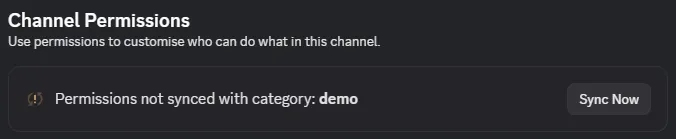
Section titled “Checking sync state and syncing”You can check and synchronize a channel’s permissions with its parent category, but it has to be done per channel.
Edit a channel and go to the Permissions section. At the top, Discord tells you whether the channel is in sync with its parent category. If it isn’t, you can click the button to synchronize them.

Validating your setup
Section titled “Validating your setup”You can test your setup yourself, without a second account:
- Go to the Roles section in Server Settings.
- Open the context menu (…) on the quarantine role.
- Click View Server as Role →.

Now you can verify that the role has the right permissions to view, not view, and interact with the channels you intended.
Do I need to do this for every new channel and category?
- Categories: yes.
- Channels: if created outside a category, yes. If created inside a category that already has the overrides, no.
What if I rearrange channels?
If you drag and drop a channel to reorder it, Discord asks whether you want to synchronize permissions with the category. Unless you have a reason not to, you usually want to Sync Permissions.
What if members need a specific Member role to access the rest of the server?
This is common for “react to verify” or similar setups. Assuming your @everyone role doesn’t have View Channel permission:
- View Channel should be allowed on the Member role itself.
- View Channel should not be granted to Member on individual channels or categories.
- Adding another override that denies view access to the quarantine role won’t work in this case.
If you have specific channels that should be visible before a user has the member role, it works to allow View Channel for @everyone and add an override that denies View Channel to the quarantine role.