

User-App Spam Settings
Archivian’s User-App Spam system watches public messages produced by Discord apps that members installed on their own accounts. It can warn staff, contain the disruption, and keep a reviewable incident tied to the member and app involved.
If this is unfamiliar territory, start with What is a user-installed app?. That guide explains why the app may not appear in your server’s member or integration lists, and why removing the app itself is usually not an available response.
What the system watches
Section titled “What the system watches”Archivian watches public responses from user-installed apps. Apps installed directly to the server are not part of this system.
Each observed response is attributed to:
- the member whose interaction caused it; and
- the app that produced it.
Both are evaluated independently. This catches two different patterns:
- One member, many apps: the member’s total activity can trigger User treatment, even if no single app is used very often.
- Many members, one app: the app’s combined activity can trigger App treatment, even if each member only uses it a few times.
For why this two-sided view matters during a coordinated incident, see Why normal anti-raid controls can miss it.
How the counting works
Section titled “How the counting works”Points fade instead of resetting
Section titled “Points fade instead of resetting”Each app response adds points to the member and app counters. The points fade continuously, so ten uses in a few seconds look very different from ten uses spread across an hour.
The Heat decay setting is a half-life:
- With a 1 minute half-life, 10 points become about 5 after one quiet minute, about 2.5 after another minute, and so on.
- A shorter half-life focuses on sudden bursts and forgives ordinary use sooner.
- A longer half-life allows slower, sustained misuse to add up.
Member and app counters have separate half-life settings. The default is 1 minute for members and 15 seconds for apps — an app’s counter adds up every member using it, so only a much tighter burst should count against it.
Why thresholds say “roughly”
Section titled “Why thresholds say “roughly””One response does not always equal exactly one point. Archivian gives newer accounts, newer server members, and newer apps more weight because they have less history to distinguish them from throwaway accounts. Discord-verified apps and members with trusted roles can receive a discount.
For example, a threshold of 10 means “roughly 10 ordinary uses in quick succession.” It may take fewer uses from a brand-new member with no trusted role, or more uses from a long-standing member using a verified app.
Levels are sticky
Section titled “Levels are sticky”Each scope has Low, Medium, and High levels. Points can fade, but reaching a level creates an incident and that level does not immediately fall again.
- A member stays at the reached level until staff clears or resolves the incident.
- An app can be configured to release automatically because leaving a popular app flagged affects everybody who uses it.
Points reset when a new level is entered. After that, another qualifying burst advances the subject by at least one enabled level:
- Cold is the default level, when there’s nothing noteworthy.
- With low / med / high thresholds of 10 / 15 / 20, a burst worth 10 points reaches Low.
- A later burst worth 17 points advances that Low incident to Medium.
- A third burst worth 23 points advances it to High.
- One burst worth 22 points can skip levels if fast enough; it can go from Cold straight to High.
This makes a level describe either the worst single burst or sustained usage at a decent pace. If you disable an intermediate level, Archivian skips upward to the next enabled one; the dashboard warns you because, for example, disabling Medium makes the next qualifying burst after Low jump to High.
Actions run when a subject enters a level, and they stay on that level even if usage dissipates. If one large burst jumps directly from Cold to High, Archivian runs the High actions; it does not also run the Low and Medium action lists on the way past.
Main controls
Section titled “Main controls”The system is designed to rely on staff intervention if possible.
- Low brings an incident to your team’s attention,
- Medium adds temporary friction when staff hasn’t noticed or responded yet, and
- High is the autonomous last resort when nobody is around to do anything.
For the high level, it is therefore recommended to have at least some sort of way to remove the user from the server. Without it, it would mean that a user can get stuck on a high heat level without recourse, so manual staff intervention would definitely be required.
Enable User-App Spam
Section titled “Enable User-App Spam”This is the master switch. When off, Archivian does not count these app responses or enforce hostile app decisions for this server.
Testing Mode
Section titled “Testing Mode”With the testing mode enabled, Archivian is only observing what happens. It won’t actually take any actions other than sending messages.
For example, if you have timeout enabled, instead of timing out the member, it would instead send an alert that it “would have timed out” that user.
Leave it on long enough to see both normal busy periods and quieter days. A week might be enough to get an idea. Then, simply adjust the settings to your liking based on what you saw.
Switching it off resets everyone’s accumulated points, so activity from the testing period cannot trigger real actions the moment the system goes live.
Exceptions
Section titled “Exceptions”An exception means Archivian completely ignores the relevant user/app. It does not add heat levels, does not capture evidence, does not punish uses of flagged apps, or anything else.
| Exception | When to use it | Example |
|---|---|---|
| Ignored bots | A user-installed app is expected to be used heavily in your server. | A translation or image tool used throughout a support channel. |
| Members | A specific member should never be evaluated. | Special exceptions for users that need it. Not recommended. |
| Roles | Everyone with a role should be outside this system. | A tightly controlled event-host role, or staff roles. |
| Channels | User-installed apps are intentionally used heavily in one channel. | A dedicated bot-playground channel or staff-only channels. |
| Ignore staff | On by default. Anyone registered as staff of your server is exempt. | Your moderators, without having to list them or give them an exempt role. |
Ignore staff follows your staff list rather than a snapshot: promote someone and they are covered on their next use, remove them and they are evaluated again. Changes can take up to a minute to apply. Turn it off only if you want your own staff counted like everyone else — including being punished by it.
An exception applies before every other decision, including a previous Mark hostile decision. Removing an exception allows future activity to be evaluated again; it does not recreate points from activity that was ignored.
Adding an app to Ignored bots also disarms whatever was standing against it — radioactive status, armed member actions, and a hostile mark. The exception alone would already hide the app, but the arming would still be there, waiting to resume if the exception were ever removed.
User treatment and App treatment
Section titled “User treatment and App treatment”The two treatment pages have the same three levels, but their actions target different people.
| Page | What crosses the threshold | Who receives member-facing actions |
|---|---|---|
| User treatment | One member’s use of all user-installed apps | The member who crossed it |
| App treatment | One app’s combined use by all members | Each member who uses that app after the level was reached |
Except for deleting messages, App treatment does not act retroactively. It does not go back and punish everyone who used the app before it looked suspicious. This prevents attackers from mass-using a legitimate popular app to frame bystanders.
Low, Medium, and High
Section titled “Low, Medium, and High”- Low is an early warning. Use it for staff visibility or gentle, reversible handling.
- Medium indicates clearer intent. It adds temporary containment such as timeouts and vote-to-delete.
- High is the strongest automatic level. It can delete tracked output, remove the offending member, make an app radioactive, or temporarily restrict public external-app use.
You can disable any level, though it is not recommended.
Settings available at each level
Section titled “Settings available at each level”Trigger threshold
Section titled “Trigger threshold”From Cold, the thresholds decide which level a burst reaches. After an incident has opened, a new burst that reaches any enabled threshold advances it by at least one level, as described in Levels are sticky. The default thresholds are:
| Level | Members | Apps |
|---|---|---|
| Low | 10 points | 10 points |
| Medium | 20 points | 20 points |
| High | 30 points | 35 points |
Start with Testing Mode and tune from real alerts. If ordinary activity often reaches Low but never looks disruptive, either increase the Low threshold or shorten the half-life. If a slow raid never adds up, lengthen the half-life or lower the relevant threshold.
Alerting
Section titled “Alerting”Notify staff posts an incident alert with the member, app, level, evidence link, configured actions, and staff controls.
- Alert channel: overrides the server’s default alert channel for this particular scope and level.
- Ping these roles / people: mentions selected staff when a new alert is posted.
- If the level channel is empty, Archivian uses the server’s default alert channel.
- If neither channel exists, no alert is posted, but the level’s other actions still run.
Low alerts normally fire most often. Avoid pinging staff at Low unless your team genuinely intends to respond to every early warning; “don’t cry wolf”, training them to ignore pings for when a real incident occurs.
An incident keeps one alert message. If the same member or app escalates, Archivian updates that message instead of scattering the incident across several messages.
Add roles and Remove roles
Section titled “Add roles and Remove roles”These settings can place a quarantine-style role on a member or temporarily remove a role they already have.
- In User treatment, the role change applies to the member who reached the level.
- In App treatment, it is armed for each member who uses that app later. Earlier users are not changed.
- When staff clears the incident, Archivian removes roles it added and restores roles it removed, where Discord permissions still allow it.
Role hierarchy still applies: Archivian cannot manage a role positioned at or above its own highest role.
Timeout
Section titled “Timeout”Available at Medium. It temporarily stops the member from interacting normally:
- User treatment times out the member who crossed the threshold.
- App treatment times out a member the next time they use the already-flagged app.
If a user is timed out, they cannot spam using user-installed apps (nor other bots). The timeout lasts for its configured duration. Clearing the incident does not shorten it by itself — but the Clear confirmation offers to lift it, for everyone still serving one. See After a Clear.
Let members vote the messages away
Section titled “Let members vote the messages away”Available at Medium. Archivian enables reaction-based vote-deletion on the messages the app produced.
Each vote uses your server’s vote-delete settings, but the threshold needed to pass is set in the treatment settings rather than using your server’s default threshold for vote-deletion.
The vote deletion works even if you have the main vote-delete system disabled.
Clearing the anti-spam incident ends any vote still in progress, exactly as if the vote had run out of time: the reaction stops counting, and the message is not deleted. Votes that already passed are not undone — the message is gone by then, and Discord cannot restore it.
Delete the messages
Section titled “Delete the messages”Available at High. Archivian deletes only the app output it tracked as evidence for that incident. It does not purge unrelated messages from the member or app.
Deleted Discord messages cannot be restored. Clearing or undoing the incident later will not bring them back.
Mark the app as radioactive
Section titled “Mark the app as radioactive”Available at High in both treatment pages. A radioactive app makes future use risky:
- Something trigger the app to be marked as radioactive.
- A user uses the app that is radioactive.
- Archivian puts their heat level to medium immediately. Optionally also tell them that using it again will have consequences.
- The user uses it again, and actions for Medium level are executed on the user
This option depends on User treatment’s Medium level. If Medium is disabled or has no meaningful actions, radioactive status provides little containment. It will speed up the path to High level though.
Clearing or exempting the app removes its radioactive status, any member actions armed on it, and a Mark hostile decision. That includes adding the app to the Ignored bots exception list in settings: an app you have decided to ignore stops being enforced on, rather than staying armed behind the exception and resuming the moment somebody removes it.
Members already removed or punished are not restored by this — it stops future enforcement only.
Disable External Apps
Section titled “Disable External Apps”Available at High under App treatment. Archivian temporarily removes Discord’s Use External Apps
permission from @everyone and any extra roles you select.
What users should expect:
- User-installed apps can no longer post public responses for the affected roles.
- Discord may still let a member run the app, but its response is private to that member.
- Apps installed directly to the server are not blocked by this permission.
- The restriction lasts for the full configured duration. Clearing the incident does not end it by itself, but the Clear confirmation offers a Lift now button that does.
- Whether it ends on its own or staff lift it early, Archivian gives the permission back only to roles from which it removed it — never to a role that already denied it, and never by writing back the whole permission set, so unrelated permission changes made during the window are left alone.
See Why this permission matters for the Discord-side explanation.
Extra roles
Section titled “Extra roles”@everyone is always included, which should be enough for most servers.
However, it is still possible that your server have some roles that grants this permission independently. This list lets you ensure that we remove the permission from those roles too.
When the restriction ends — either on its own, or because staff pressed Lift now on the Clear confirmation — the permission is restored to these roles, if the role had it to begin with.
Remove them from the server
Section titled “Remove them from the server”Available only at High under User treatment. Choose Kick or Ban for the member who crossed the threshold. Archivian records the moderation case.
Clearing the incident does not rejoin a kicked member or unban a banned member. Those are separate moderation decisions.
Auto-remove if using specific app
Section titled “Auto-remove if using specific app”App treatment intentionally has no automatic “remove everyone who used this app” option.
However, on a High app alert, authorized staff can explicitly apply Mark hostile to do exactly this. It is only available in the alert because staff should manually decide whether this app is a purpose-built for griefing, on a case-by-case basis.
Custom messages
Section titled “Custom messages”Each level can send your own content or embed when it is crossed. A message can go:
- to the channel where the app was used;
- as a reply to the app output;
- by DM to the member who used it; or
- to a specific server channel.
DM delivery can fail silently when the member does not accept DMs. In App treatment, a DM still goes to the member who used the app—the app itself cannot receive the notice.
Messages support the variables shown in the editor, including the member, app, channel, triggering message link, level, points, and threshold.
This can be used for informing members, produce logs, send auxiliary alerts, or anything else. For example, if a bot reaches High level and External App Use gets disabled, you can automate an announcement that using external apps is temporarily disabled due to an active incident.
Fine-tuning
Section titled “Fine-tuning”Heat decay
Section titled “Heat decay”Controls the point half-life described in Points fade instead of resetting. Shorter values isolate sharp bursts; longer values catch slow sustained use.
Auto-Clear app heat & level
Section titled “Auto-Clear app heat & level”An app level affects many potential users, so it can clear its heat level automatically after a specified amount of time. The timer starts when the app enters its current level, not when it was last used.
It is therefore recommended that the auto-release is sufficiently long enough into the future, for example a couple of hours.
When released:
- the app returns to Cold and its points are cleared;
- the radioactive marking and armed member actions from that app level are lifted;
- measures with their own timer — issued timeouts and the external-apps restriction — keep running until their time is up (staff can end them early from the incident’s Clear follow-up); and
- the incident remains available for staff review.
An app under a live Mark hostile decision is never auto-released. Staff classified that app, so its level stays where they last saw it until the mark is lifted — clearing or exempting the app resets it.
Trusted roles
Section titled “Trusted roles”Add roles whose members should accumulate User treatment points more slowly. Counts as 0.5 means their use contributes about half as much before the system’s safety limits are applied.
If a member has several listed roles, Archivian uses their highest-positioned listed server role. A value of 1 gives no discount. For members who must never trigger anything, use a role exception.
Verified apps
Section titled “Verified apps”This multiplier affects the app counter, not the member counter. The default of 0.5 means a Discord-verified app normally contributes about half the app points of a comparable unverified app. A value of 1 treats verified and unverified apps alike.
This setting is a trust discount, not a reason to ignore member behavior. A member can still cross User treatment while using a verified app.
Apps purpose-built for spamming are usually newly created and therefore not verified, so this setting helps with making it more difficult to get false-positive on trusted (verified) apps
Staff alerts and incident controls
Section titled “Staff alerts and incident controls”An incident alert can offer these buttons, depending on its scope, level, and the staff member’s Archivian permissions:
| Button | What it does |
|---|---|
| Clear | Returns the member or app to Cold, clears its points, closes the incident as a false positive, and reverses supported actions. |
| Escalate | Moves the incident to the next enabled level immediately and runs that level’s configured actions. |
| Punish | On a member incident, lets staff choose a timeout, kick, or ban and closes the incident as confirmed. |
| Mark hostile | On a High app incident, lets staff choose whether every future invokers are kicked or banned automatically. Earlier users are untouched. |
| Exempt | Clears the incident and permanently adds that member or app to the matching exception list. |
Clear, Escalate, and Exempt offer a short-lived Undo button. Undo restores the incident’s status and level, but it does not reapply a punishment that Clear already reversed.
After a Clear
Section titled “After a Clear”A timeout and an external-apps restriction both run for the duration they were given, and clearing an incident does not shorten either one by itself. But a Clear means “this was a false positive”, so the confirmation message asks about anything still running — one question with one button each:
| It asks | If you press it |
|---|---|
| Undo this? | Restores the incident and its level. Punishments Clear already reversed stay reversed. |
| External apps are still restricted | Use External Apps goes back to the roles the restriction took it from, immediately. |
| N members are still timed out | Every member listed has their timeout lifted, and their case gets an entry recording it. Up to ten are named with when their timeout would have ended; any beyond that are counted. |
Exempt asks the same questions, since it clears the incident too. Escalate does not: it deliberately leaves everything applied, so there is nothing it left standing to offer.
Pressing a button changes only that button, which becomes its own receipt — Restriction lifted, Lifted 7, or Already lifted if the window ended or another moderator got there first. The other questions stay pressable. Nothing is lifted unless you press.
If part of it could not be done — a member has left the server, or a role sits above Archivian’s own — the button says so and a separate message names who is still timed out and why. Pressing again is safe: it only retries what is still standing.
Lifting timeouts needs the same permission as /untimeout, since it shortens a moderation case. Lifting
the restriction needs the same permission as clearing the incident.
Repeated alert cooldown
Section titled “Repeated alert cooldown”Suppresses a new alert for the same member or app at the same level for the selected duration. A real escalation still alerts immediately, and an existing incident message can still be updated.
Auto-close quiet reports
Section titled “Auto-close quiet reports”Automatically closes quiet incidents only when no automatic action was applied. If a role, timeout, or another state is still in effect, the incident stays open for a moderator.
Standing summaries
Section titled “Standing summaries”When there is something to report, Archivian periodically posts a User-app spam — standing summary in the server’s default alert channel. It lists:
- hazardous apps whose future invokers face an automatic consequence;
- open incidents where something remains applied; and
- incidents quiet for more than a day that are probably safe for staff to review and clear.
The summary does not ping staff. Each list carries its own bulk button, and each press checks the current state rather than relying on the list as it was when the summary was posted.
Defuse hazardous apps makes every listed app harmless to use again: radioactive status, any member actions armed on it, a hostile mark, and an external-apps restriction all come off, and the app’s own incident is closed. It reports the apps it defused by name.
Two things it deliberately does not do. It does not undo removals that already happened — an unban is a separate decision — so it offers no Undo, because nothing it did can be re-armed. And it does not touch a member’s incident, even when that member’s incident is what marked the app radioactive: they may still be at a level with punishments applied, and that is a separate call for staff to make.
What Clear can and cannot undo
Section titled “What Clear can and cannot undo”| Action | What Clear does |
|---|---|
| Roles Archivian added | Removes the roles it actually added |
| Roles Archivian removed | Gives back the roles it actually removed |
| Radioactive or armed app actions | Disarms them |
| Mark hostile | Lifts it when the app incident is cleared |
| Timeout | Leaves it to expire naturally |
| Disable External Apps | Leaves it in place until its configured duration ends |
| Vote-delete already in progress | Ends the vote, as if it ran out of time — the message is not deleted |
| Deleted messages | Cannot restore them |
| Kick or ban | Does not rejoin or unban the member |
Example starting setups
Section titled “Example starting setups”Learn first, act later
Section titled “Learn first, act later”Use this when you do not yet know your server’s normal app usage:
- Enable User-App Spam and Testing Mode.
- Alerts are already on for every level — pick an alert channel, or let them go to your server’s default alert channel.
- Do not ping at Low.
- Keep the default thresholds and half-lives.
- Review alerts for several busy and quiet periods.
- Add clear exceptions, then tune thresholds before stopping Testing Mode.
Note that the defaults are not alert-only: a timeout at Medium, a kick at user High, and the external-apps restriction plus radioactive marking at app High all ship enabled. Testing Mode holds them back — the moment you switch it off, they act for real (and your accumulated testing points are reset so nothing fires off old data).
Keep legitimate apps available, contain obvious abuse
Section titled “Keep legitimate apps available, contain obvious abuse”A balanced setup for many communities:
- Give established member roles a 0.5 trust multiplier.
- Keep the verified-app multiplier at 0.5.
- Alert at Low; use a timeout or quarantine role at Medium.
- At High, delete messages and make the app radioactive.
- Configure Disable External Apps only if your team accepts a temporary server-wide public-use restriction during severe incidents.
Server where external apps are never needed
Section titled “Server where external apps are never needed”If members do not need user-installed apps publicly, Discord’s own Use External Apps permission is
the simpler preventive control. Disable it for @everyone; user-installed app replies become private
instead of being visible to everyone.
Archivian remains useful if selected roles or channels are still allowed to use them.
Examples of Legitimate External App Uses
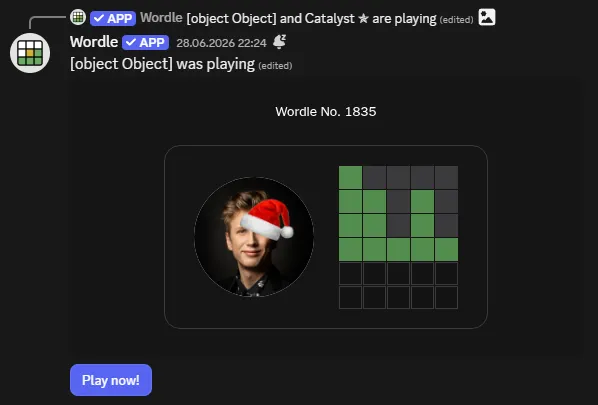
Section titled “Examples of Legitimate External App Uses”Bots that offer activities are often user-installed apps. They have a legitimate need for the Use External Apps permission to enable engagement and competition among members.
These apps often produce publicly visible messages. For example, the Wordle bot shows when members in your server are playing, and how they are faring.
Why did the app trigger but not the members who used it?
The app counter combines use by everyone. Ten members using the same app twice can look mild for each member but intense for that app. This is the pattern App treatment is designed to catch.
Why did a member trigger while switching between several apps?
User treatment combines that member’s use across any user-installed apps. It is a server-wide counter for their overall app usage, not per app usage.
Why did points fall but the incident stay open?
Point decay decides whether new activity crosses a threshold. The reached level is deliberately sticky. A user that spams then stop is still a spammer, even if they stopped at some point.
A temporary quiet period does not silently reverse a moderation state. Staff clear member incidents; app incidents can also use the automatic release setting.
Apps may be shared by many members, so they can have an exception with the ability to automatically clear after a fixed period of time.
Can I ban the user-installed app from my server?
Technically yes, but it won’t help during a raid.
This the reason why user-installed apps are sometimes used for spam raids; it makes it difficult for staff because it cannot be handled in a way they are used to.
User-installed apps do not count as being a member, so they cannot be removed from the server. Instead, you have to punish the user that installed/used the app. See guide explanation.